Hi everyone ✋
We are starting a brand new series today ─ GDScript, the language of the Godot game engine 🎮
I want to be upfront about something before we begin. This series is written for people who already know how to program. If we are comfortable in C++, C#, Java, Kotlin, Swift, or anything in that family, then this series is built for us. Which means I am not going to spend three posts explaining what a variable is. We already know what a variable is 🙂
Instead, we will learn GDScript the way experienced developers actually learn a new language ─ by difference.
- What is the same as what we already know?
- What is different?
- What is going to bite us?
That is a much faster road than starting from zero, and honestly it is a lot more fun too.
So today is post one ─ what GDScript is, where this series is going, and getting the engine running on both Windows and macOS. And by the end, we will run our very first script 🥳
Let’s take a deep dive 🤿
So what is GDScript? 🤔
GDScript is the scripting language built into Godot, a free and open-source game engine. It is not a general-purpose language ─ we will not be writing a web server or a compiler in it. It exists for one job ─ writing game logic inside Godot.
The syntax will feel instantly familiar ─
var health = 100
var speed: float = 250.0

func take_damage(amount: int) -> void:
    health -= amount
    if health <= 0:
        die()
Indentation instead of braces. func instead of void. Optional type hints after a colon. If we have ever touched Python, our brain quietly files this away as “Python-ish” and moves on.
But here is the thing worth noticing, and it is the most important idea in this whole first post ─ GDScript is Python-ish only on the surface. It is not Python. It has no relationship to Python. It is a completely separate language that was designed from scratch specifically to talk to a game engine, and it borrowed Python’s look because that look is pleasant to read.
Why does that matter?
Because our Python knowledge will help us for about a day, and then it will start lying to us 😱
No decorators (there are annotations, which are a different thing). No list comprehensions. No import the way we expect. No self in the parameter list. Different truthiness rules in places. So let’s enjoy the familiarity, but let’s not lean on it.
But is it worth learning a language that works in only one engine? 🤔
This is a fair question and I would be asking it too. Here is my honest answer.
GDScript is tiny. We can hold the entire language in our head. There is no template metaprogramming, no lifetime annotations, no fifteen ways to initialize a variable. For a developer who already thinks in code, the language itself is a weekend ─ maybe two.
And that is exactly the point 👀 The language is small so that the engine can be the interesting part. GDScript is designed to disappear. Once the syntax stops being a speed bump, what is left is nodes, scenes, signals, resources ─ the actual craft of building a game. That is where the good stuff lives, and that is where most of this series lives.
So no, we are not spending three months on syntax. We are clearing it fast and getting to the engine.
Who is this series for? 👀
Let me put it plainly. This series is for you if ─
- You already program in at least one real language.
- You want to build games, or at least understand how games are built.
- You are tired of tutorials that spend the first twenty minutes on “what is a for loop.”
If that is you, welcome 🥳 And if you are a complete beginner, you are still welcome ─ but you may want a gentler introduction first, because we will be moving quickly through the basics.
The roadmap 🗺️
| Phase | What we cover | Why |
|---|---|---|
| 0 ─ Setup | Installing the engine, the no-build-step mindset, first running script | Almost everything we assume about “setting up a language” is wrong here |
| 1 ─ Language | Variables, types, operators, conditionals, loops, arrays, dictionaries, strings, functions | Fast, contrast-driven ─ we already know these concepts |
| 2 ─ OOP | Scripts as classes, inheritance, typed GDScript | This is where people quietly get lost, so we go slow |
| 3 ─ Engine | Nodes, scene tree, lifecycle, signals, exports, resources, autoloads, await |
This is the actual mastery. Not syntax. This. |
| 4 ─ Master | Performance, debugging, architecture, GDExtension and native interop | Retargeting the instincts we already have to a managed engine |
| Capstone | One small complete game | Proof that all of it clicked |
If we skim that table, notice how small Phase 1 is compared to Phase 3. That ratio is deliberate. Anyone can learn for loops in GDScript. Very few people genuinely understand signals and the scene tree, and that is the difference between someone who knows the syntax and someone who can actually ship a game.
Every post will be self-contained, and wherever it makes sense we will end with something on screen ─ a sprite moving, a label updating, a health bar draining. Not just console prints. We are learning a game language, so let’s make games 🥳
Alright. Enough talking. Let’s install the thing.
Getting the engine 🤿
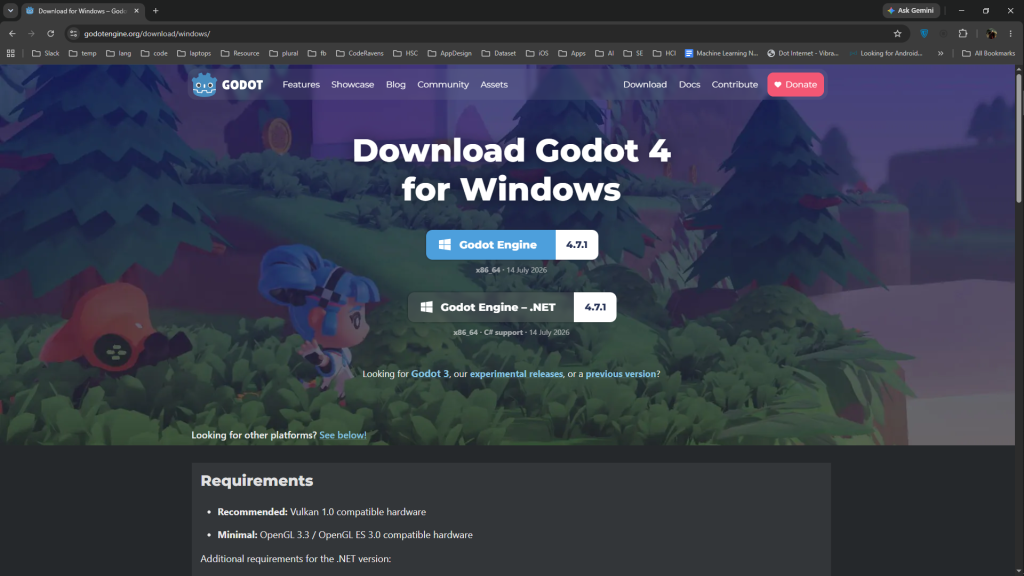
Head over to the official site ─ godotengine.org ─ and go to the Download page. It detects our platform automatically, but we can pick manually too.
On Windows
On macOS
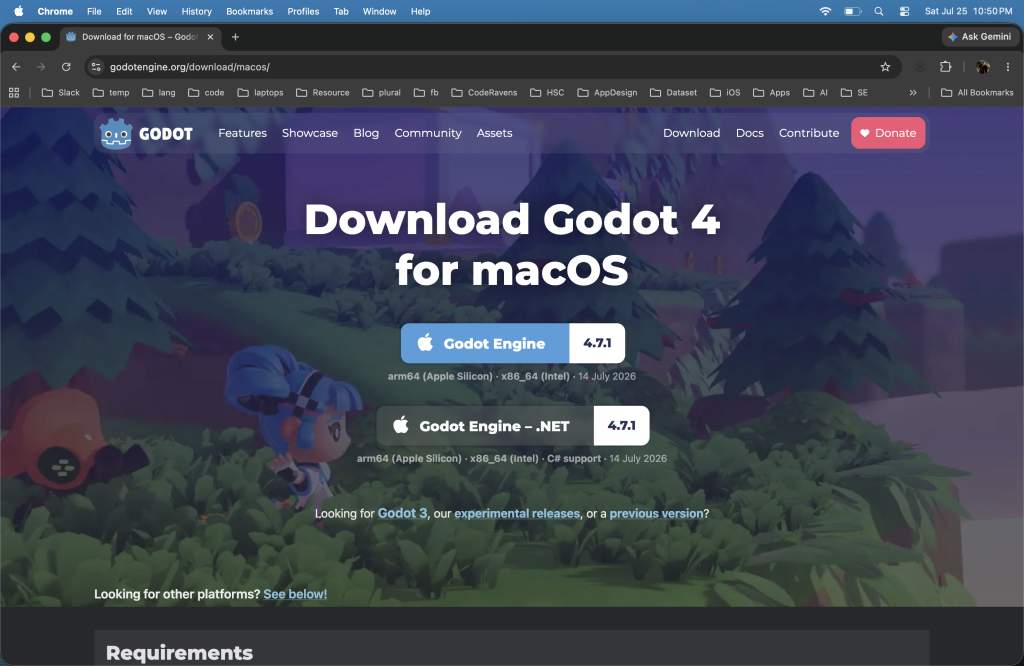
At the time of writing, the current version is 4.7.1. Whatever the latest stable 4.x is when you read this is the one to grab ─ everything in this series targets Godot 4.
Now let’s look carefully at those two screenshots, because there are two buttons, and picking the wrong one is the single most common way to start this journey badly 😱
- Godot Engine ─ the standard build. GDScript only. This is the one we want.
- Godot Engine – .NET ─ the same engine plus C# support. It is a bigger download and needs the .NET SDK installed separately.
On macOS we also see it mentions arm64 (Apple Silicon) and x86_64 (Intel). Good news ─ that single download contains both, so we do not have to figure out which chip we have. Just download it.
Wait ─ where is the compiler? 🤔
Now here comes the part that genuinely surprises experienced developers, so let’s slow down for a second.
Think about what we normally do to start using a new language.
- For C++ we install a compiler, then probably CMake, then an IDE, then we fight our
PATHfor twenty minutes. - For Java we install a JDK, set
JAVA_HOME, and pick Maven or Gradle. - For C# it is the .NET SDK plus Visual Studio.
- For Swift, Xcode plus command-line tools.
Now here is what we do for GDScript ─
We download one file. We unzip it. We run it. 🥳
That’s it. Really.
There is no separate GDScript to install. No compiler. No toolchain. No SDK, no JDK, no build system, no package manager, no PATH variable to edit, no admin rights needed. What we downloaded is a single self-contained executable file that is the editor, the runtime, the debugger, and the script interpreter, all at once.
On Windows we get a .exe inside a zip ─ unzip it anywhere we like and double-click. On macOS we get a .app inside a zip ─ drop it in /Applications and open it. The first launch on macOS may show a security prompt, which is normal for apps downloaded outside the App Store.
Also worth knowing ─ because it is one portable file, we can keep multiple Godot versions side by side with no conflict at all. No version managers, no nvm-style tooling. Just two files in two folders. That is a genuinely nice quality-of-life win once we are maintaining more than one project.
Creating a project
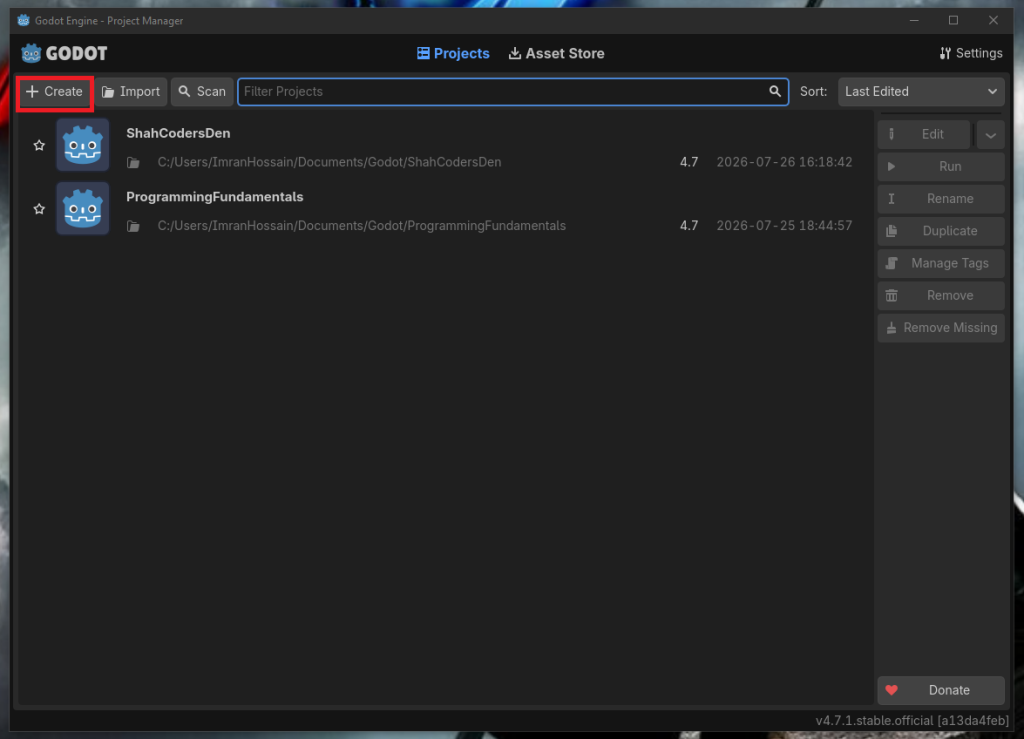
Let’s launch Godot. We land in the Project Manager, not in a code editor ─ and that is our first hint about how Godot thinks.
We do not open files in Godot. We open a project. Click Create, give it a name, pick an empty folder, and create it. A file called project.godot appears in that folder ─ that file marks the project root, loosely the way a .sln, a build.gradle, or a CMakeLists.txt marks a root in the worlds we come from. Everything in our project is addressed relative to it using a res:// path.
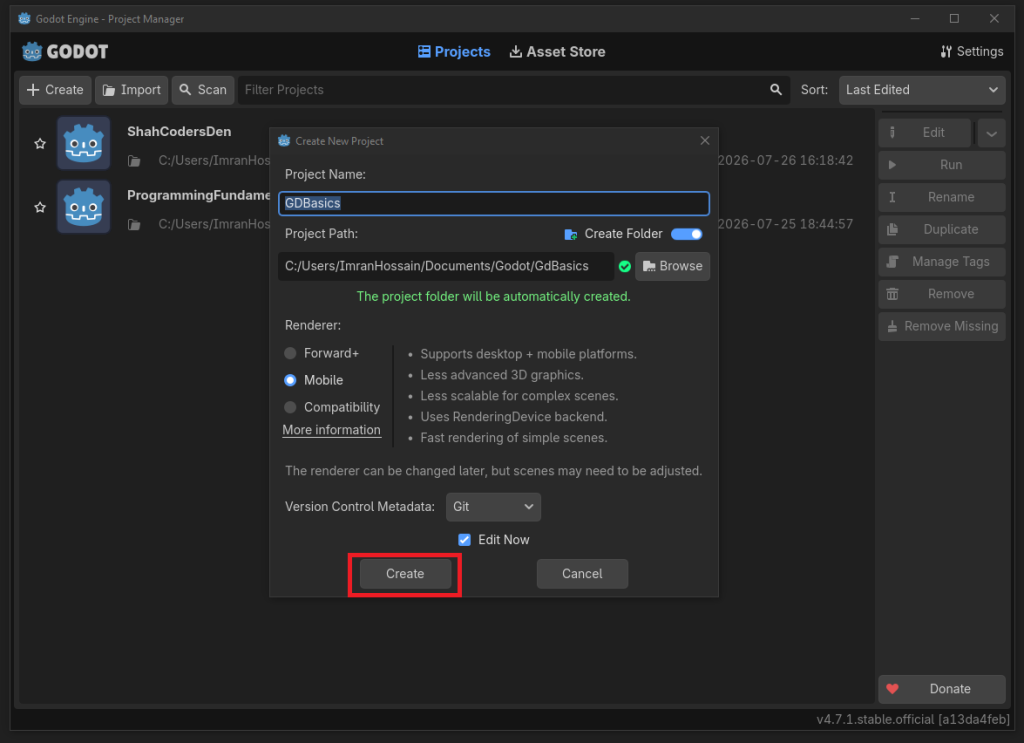
For the renderer, Compatibility is the safest choice while learning. We can change it later.
Now the interesting part ─ running only a script 🥳
Here is a completely reasonable expectation. We have installed the engine, we know Python-ish syntax, so surely we can now write a hello.gd file and run it, the way we would run python hello.py or java Main?
Nope 😱
There is no godot myscript.gd in that sense. Normally a GDScript file is not a program at all ─ it is a class that has to be attached to a node inside a scene, and the engine runs it as part of the game. No node, no scene, no execution. This is the single biggest mental shift of the entire series and we will come back to it properly in Phase 3.
But ─ and this is the whole reason for today’s post ─ there is a way to run a bare script with nothing else. No scene. No node. No game window. Just a script file and a keystroke.
The trick is a special base class called EditorScript.
Setting it up
We need exactly one thing in our project ─ a script file. Nothing else. No scene to build, no node to add, no main scene to configure.
Right-click in the FileSystem dock and choose New → Script. In the dialog that opens there is an Inherits field ─ let’s type EditorScript there (it is case-sensitive, so watch that one). Godot notices what we are doing and hands us a template with _run() already written in 🥳
Name it whatever we like ─ I called mine Den.gd ─ and create it. We should end up with something like this ─
@tool
extends EditorScript


func _run() -> void:
    print("Let's build indie games")
Small file, but every single line is doing a job, so let’s go through them.
@tool tells Godot that this script is allowed to execute inside the editor itself, not only inside a running game. This one is not optional here ─ a script extending EditorScript will simply not work without it. Also note it has to be the first non-comment line in the file.
extends EditorScript is the important one. EditorScript is a base class that exists purely so we can run a single script in the editor without building a whole editor plugin. This is our escape hatch from the “scripts must live on a node” rule.
func _run() -> void: is our entry point ─ Godot calls this method when we run the script. The leading underscore is Godot’s convention for engine callbacks, and we will be seeing it constantly (_ready, _process, _init). The -> void is an optional return type hint, and I am writing it in from day one because typed GDScript is genuinely better and we will get into why.
Coming-from note 🤔 ─
_run()looks like amain(), but it is not one. We do not control it, we do not call it, and it only exists because we inherited fromEditorScript. Every other script we write in Godot will have no entry point at all ─ the engine calls our callbacks, we never call in. If we have used framework lifecycle hooks likeonCreate,viewDidLoad, or component mount, that inversion of control is the right instinct.
Running it ─ File → Run
Let’s make sure the script is the one currently open in the Script editor, then in the script editor’s own menu bar go to File → Run.
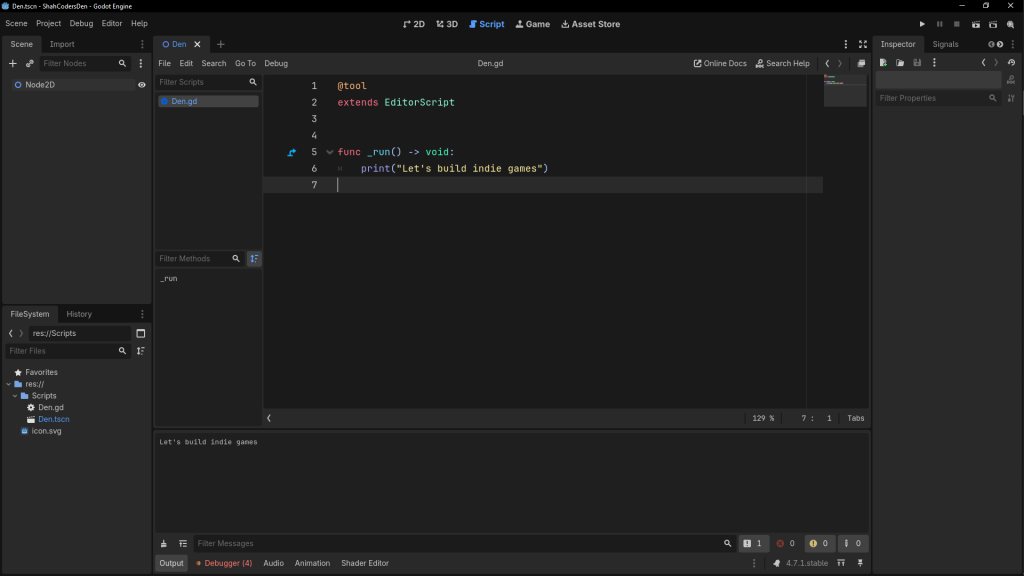
And there it is at the bottom ─ Let's build indie games 🥳
Notice what did not happen. No compile step. No link step. No build output. No game window opening. We wrote a file, we pressed a menu item, and the code ran. In compiled languages the cycle is edit → compile → link → run. Here it is edit → run. Once we get used to that, going back feels slow.
The shortcut ⌨️
We will be doing this constantly while learning, so let’s learn the shortcut right away ─
| Platform | Shortcut |
|---|---|
| Windows / Linux | Ctrl + Shift + X |
| macOS | Cmd + Shift + X |
One small catch that will confuse us at least once ─ this shortcut only fires when our focus is inside the script editor. If we have clicked over to the 2D or 3D view, or we are poking around in the Inspector, nothing happens and we will assume the script is broken. It isn’t. Let’s click back into the code and press it again 🙂
Where does the output go? 👀
Look at the bottom of the editor. There is a panel with tabs ─ Output, Debugger, Audio, Animation, Shader Editor. Our print() lands in Output. That panel is our stdout, our console, our terminal. Let’s get friendly with it, because for the next few posts it is where we will be living.
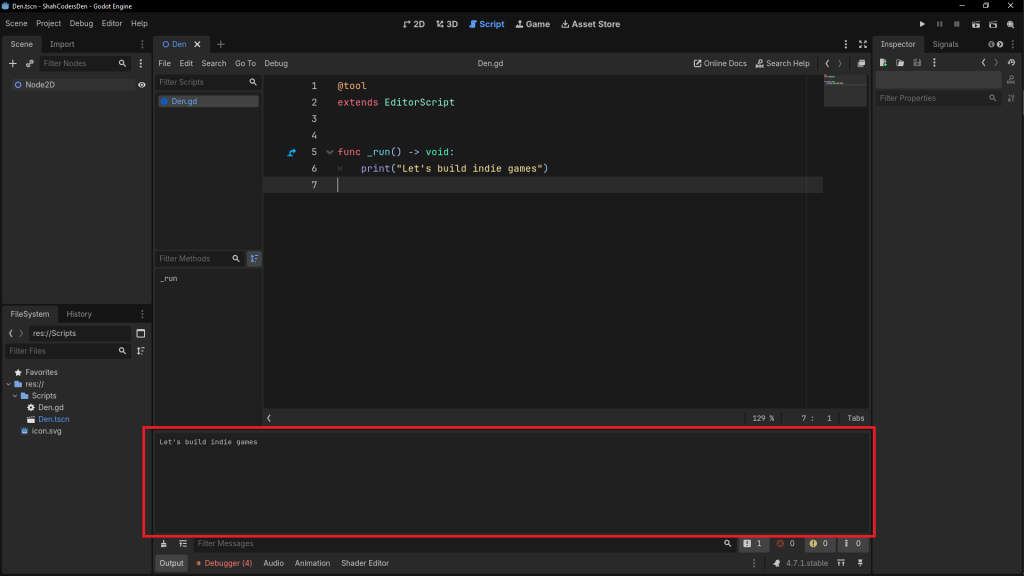
Now the part worth calling out clearly, because it trips up almost everyone the first time 😱
This is not the same as running our project. If we press the big Play button, or F5, expecting our EditorScript to run ─ it will not. F5 runs the project, which means Godot goes looking for a main scene, and an EditorScript is not a scene. We get a prompt about selecting a main scene, or a game window with nothing in it, and no sign of our print() anywhere.
So let’s keep the two paths separate in our head ─
| Runs what | How we run it | Output appears in | |
|---|---|---|---|
EditorScript |
one script, in the editor | File → Run / Ctrl+Shift+X |
Output panel |
| A normal script on a node | our actual game | Play button / F5 |
Output panel, while the game runs |
Both eventually print to the Output panel ─ but only one of them is what we are using today, and pressing the wrong one is the classic first-day mistake.
A couple of extra gotchas 😱
While we are here, three things that will save us some confusion later.
EditorScript only runs from Godot’s own script editor. If we prefer working in VS Code (and many of us will), the Ctrl+Shift+X shortcut is not available to us there. Our alternatives are to right-click the script in the FileSystem dock and choose Run, or to add a class_name at the top of the script and launch it from the command palette with Ctrl + Shift + P.
Nothing we print here is part of our game. EditorScript is a learning and tooling device. It is genuinely useful in real projects too ─ batch-renaming assets, generating config files, one-off data conversions ─ but it is editor tooling, not gameplay code. So let’s not build our game inside _run() 🙂
Godot creates a .godot/ folder in our project. It is a cache. Let’s put it in our .gitignore before the first commit, or we will be committing regenerated binary junk forever. Godot publishes an official .gitignore for exactly this.
So what should we remember? 🤔
Let’s wrap up the key takeaways ─
- GDScript is the built-in scripting language of the Godot engine ─ it looks like Python but is a completely separate language, so let’s not lean on Python habits.
- There is no separate GDScript install ─ no compiler, toolchain, SDK, build system, or
PATHsetup. One self-contained executable is the editor, runtime, debugger, and interpreter. - We download the standard build, not the .NET build, unless we specifically want C#.
- We do not open files in Godot, we open a project, marked by
project.godotand addressed withres://paths. - There is no build step ─ the cycle is edit → run, not edit → compile → link → run.
- Normally a script must be attached to a node in a scene to execute. That is the big mental shift of this whole series.
EditorScriptis the exception ─ it lets us run one bare script with no scene and no node. It requires@tooland a_run()method.- We run it with
File → Run, orCtrl + Shift + Xon Windows andCmd + Shift + Xon macOS ─ and only while our focus is in the script editor.
If that all landed, we now have a working engine and the shortest possible path from “I typed some code” to “the code ran” ─ which is exactly what we need for the next few posts, where we will be moving fast through the language itself.
Congratulations 🥳🥳🥳
We have Godot installed and our first GDScript running.
In the next post we will look at script anatomy ─ what extends really means, why every script file is secretly a class, and the difference between _ready(), _process(delta), and _physics_process(delta). That is where GDScript stops looking like Python and starts looking like a game engine 😉
Happy Coding 💻 🎵